You can put your Smoobu website on a domain you own, like www.yourrentalname.com, instead of the free Smoobu subdomain. You set the domain in Smoobu, publish your site, and add three DNS records at your domain provider; the security certificate then follows by itself. If your domain is already connected and your site loads normally, you don't need to change anything.
Before you start
You need all of these before you connect:
-
A domain of your own. Smoobu links your website to a domain you already own. If you don't have one yet, buy one from an established domain provider (GoDaddy, for example; domain providers are also called registrars). Pick a domain without umlauts or other special characters (ä, ö, ü and similar): those addresses aren't supported and lead to security-certificate problems. Keep the full address, including
www., at 64 characters or fewer, or the certificate can't be issued. - Access to your domain's DNS settings at your domain provider. DNS is the internet's address book, and you'll add the entries that point your domain at your site.
- Your website built and ready to publish. See How do I create a website with Smoobu?. Publishing needs a paid plan.
Steps
- In Smoobu, open Configuration > Website Builder and stay on the Basics tab.
- Enter your domain in the Own URL field without
www(for exampleyourrentalname.com, notwww.yourrentalname.com) and click Save. - Click Go to Editor and publish your site with Publish.
- At your domain provider, open your domain's DNS settings and add three records: a CNAME record on
wwwpointing tos.eu-multiscreensite.com, and two A records on the root (@) pointing to18.197.248.23and52.59.120.70. What each record does, in plain words, is explained in My website isn't loading or can't be reached. - Remove every other record of type A, AAAA (a newer address type), or CNAME on
wwwand on the root. Leftover records from a previous website conflict with the new ones and block both the connection and the security certificate. - Give the change time to spread. A DNS change usually takes effect within a few hours, but it can take up to 48 hours to reach everywhere.
Check it worked
Open www.yourdomain.com and yourdomain.com in a private browser window: both show your website. The padlock can arrive a little later than the site itself. Your SSL certificate (the technology behind the padlock that marks a site as secure) is issued automatically once your DNS records are clean and your site is published, usually within a few hours. Your free Smoobu subdomain (your-name.myweb.smoobu.com) keeps working alongside your domain, so you always have a fallback link.
Common problems
My site worked for years and stopped around April 2026
The DNS record values a Smoobu website needs changed in April 2026. Domains connected long before that date still carry the old values at the domain provider, and many of those sites stopped loading. You haven't done anything wrong, and your website itself is untouched. Update the records at your domain provider to the current values in Step 4, remove the old ones, and your site comes back once the change takes effect. If your domain is connected and your site loads normally today, this doesn't affect you: leave your records as they are.
The site still doesn't load after I set the records
First, give it time: a DNS change usually takes effect within a few hours, but it can take up to 48 hours to reach everywhere. Then check Step 5 again, because a leftover record on www or the root is the most common blocker. The full checklist, including what it means when only your Smoobu subdomain loads, is in My website isn't loading or can't be reached.
My domain provider won't let me add two A records on the root
Some providers, Strato in particular, only accept one A record on the root. There is a workaround: see the domain-provider section in My website isn't loading or can't be reached.
The site loads but shows "Not secure"
The certificate hasn't been issued yet or something is blocking it. It usually sorts itself out within a few hours of your DNS records being clean. If the warning stays, work through My website shows 'Not secure' (SSL certificate problems).
Related articles
- My website isn't loading or can't be reached
- My website shows 'Not secure' (SSL certificate problems)
- How do I create a website with Smoobu?
Still stuck?
If these steps didn't fix it, contact the Smoobu team: open the Help menu to open a ticket or book a call slot, or use the chat bubble in the bottom-right corner. To get the fastest answer, please include:
- Your Smoobu User ID (in the profile-icon menu, top right).
- The property name or ID, if it's about one property.
- The Booking ID, if it's about one booking (Bookings, then View more).
- The channel name, if it's about channel sync (Booking.com, Airbnb, Vrbo, and so on).
- A short step-by-step: what you did, what you expected, and what happened.
- Screenshots or a short screen recording of the problem.
- Your browser and operating system, if something looks wrong on screen.
Comments
4 comments
why do i need to do this now again as i was saying its been online since 2 years ago working fine
hi please see this im confud
please see this where does what go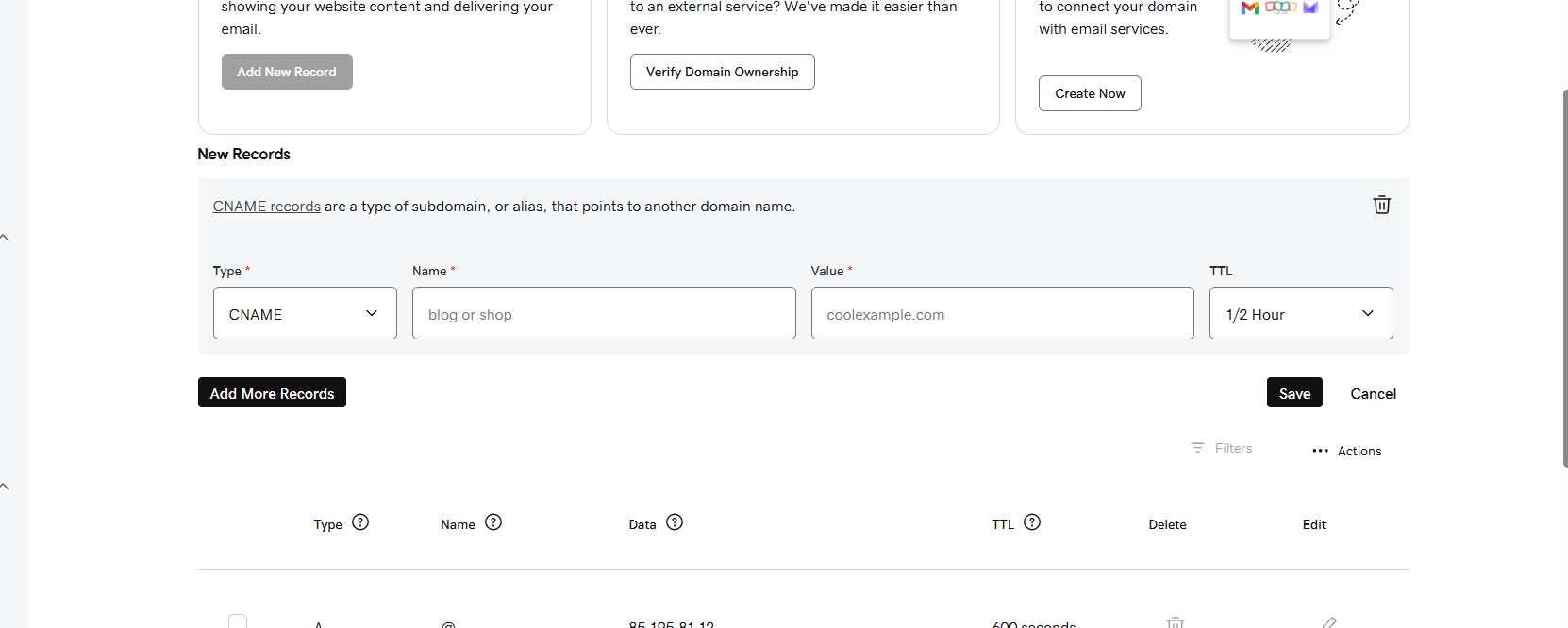
Please sign in to leave a comment.